
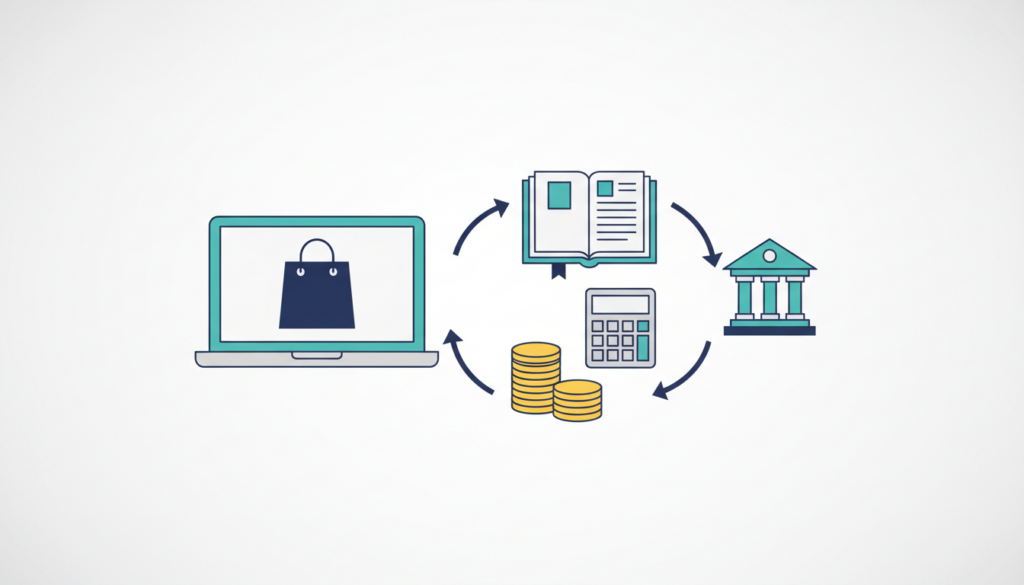
Shopify makes it easy to start selling. It does not make it easy to keep clean books. Your bank account shows one deposit, your Shopify admin shows dozens of orders, and somewhere in between are discounts, refunds, processing fees, reserves and the odd chargeback. If you have ever stared at a payout and wondered why it doesn’t match your sales, this guide is for you.
I’m Trevor Fenner. I’ve been selling online since 2005, I’ve run my own ecommerce business since October 2010, and in 2015 I started Ecommerce Paradise to teach other store owners how to build profitable stores. I built and ran high-ticket dropshipping stores for years and sold a multi-store portfolio doing about $7M a year in 2022. Every single one of those stores lived or died by its numbers.
This is the Shopify bookkeeping hub for Bookkeeping Paradise. It covers where your Shopify financial data lives, how a payout really breaks down, how to record it without double counting, which tools connect Shopify to your ledger, and the monthly routine I’d follow if I were starting a new store today. It sits under our main ecommerce bookkeeping guide, so start there if you want the bigger picture first.
This article is general education, not tax, legal or accounting advice. Every store is different, so have a qualified accountant confirm how your Shopify activity should be recorded and taxed. You can read how we research and label our content in our editorial standards. Shopify details below come from the Shopify Help Center and were checked in November 2026.
Some links on this page are affiliate links. If you sign up through them I may earn a commission at no extra cost to you. Read the affiliate disclosure.
Shopify bookkeeping at a glance
Here’s the short version before we get into the details. These are the pieces every Shopify store owner has to deal with, whether you do the books yourself or hand them to a bookkeeper.
| Piece | Where you find it in Shopify | What it means for your books |
|---|---|---|
| Gross sales, discounts, returns | Analytics > Reports > Finance summary and Total sales breakdown | Your revenue story, recorded by order date |
| Shopify Payments payouts | Finance > Payouts | Cash that lands in your bank after fees and adjustments |
| Processing fees | Inside each payout and the transactions export | An expense, not a reduction you can ignore |
| Reserves | Finance > Payouts, Reserve balance | Your money held by Shopify, not an expense |
| Chargebacks | Orders, plus the payout that deducts them | Lost revenue plus a fee, sometimes recovered |
| Sales tax collected | Finance reports, Taxes | Money you owe the state, not income |
| Shopify bill (plan, apps, labels) | Settings > Billing | Operating expenses on a separate bill |
What Shopify bookkeeping actually covers
Bookkeeping for a Shopify store is the same job as any other business at its core. You record what came in, what went out, and you prove it with source documents. What makes Shopify different is that the money doesn’t come straight from the customer to your bank. It passes through a payment processor, gets bundled, gets netted against fees and refunds, and lands days later as one lump.
So Shopify bookkeeping really has 4 jobs:
- Record sales correctly by date, including discounts, shipping charged, taxes collected and returns.
- Record the costs Shopify and your payment processors take out before you get paid.
- Match every payout to the bank deposit it created, with nothing left unexplained.
- Track the cost of what you sold, so your profit number is real and not just revenue minus ads.
If you’re brand new to the basics, read our bookkeeping for beginners guide first. It explains reconciliation and records in plain language, and this article builds on it.
Where your Shopify financial data lives
The biggest mistake I see is store owners pulling numbers from 3 different places in Shopify and expecting them to agree. They won’t, because each report answers a different question.
Finance summary and Total sales breakdown
These live under Analytics > Reports. The Shopify finance reports documentation defines gross sales as product price times quantity, before discounts, returns, taxes and shipping. Net sales is gross sales minus discounts and returns. Total sales adds back taxes, shipping and fees.
Shopify notes that the Total sales breakdown includes the values typically needed for bookkeeping. This is your revenue report. Use it to record sales by period.
Payouts and the Shopify Payments activity report
Finance > Payouts shows every deposit Shopify Payments sent you. Each payout breaks down into charges, refunds, adjustments, fees, reserves and retried payouts. You can export the transactions behind any single payout as a CSV with columns like Amount, Fee and Net.
Here’s the line that trips people up. Shopify itself says the Shopify Payments activity report reflects funds you received, not revenue for accounting purposes. In other words, payouts are a cash report. Don’t record them as sales.
Orders export and other gateways
The orders export gives you line-level detail, which you’ll need for cost of goods and for investigating odd orders. If you also take PayPal or manual payments, each of those settles separately. Every gateway needs its own clearing account and its own reconciliation.
Your Shopify bill
Your Shopify plan, many app subscriptions and Shopify Shipping labels show up under Settings > Billing. These are operating expenses. Download the bill each month and attach it to the matching charge in your books, because a card statement line that just says “Shopify” won’t tell your accountant which part was apps and which was shipping labels.
How Shopify payouts work
A payout is the money Shopify Payments sends to your bank after a settlement period. According to the Shopify payout timing page, US stores have a settlement time of 3 business days with no minimum payout. Weekends and holidays don’t count.
Shopify gives this example: a charge on Friday with a 3 business day settlement is paid out on Wednesday, and weekend charges also land in that Wednesday payout. Your bank can then take another 1 to 3 business days to show the funds.
That timing gap matters for bookkeeping. Sales you make on the last 2 or 3 business days of a month will usually be paid out next month. If you record revenue from deposits, your monthly numbers will always be off by those days.
Things that change the payout amount
- Processing fees taken from each transaction.
- Refunds you issued, which are pulled from your balance.
- Chargebacks, which deduct the disputed amount plus a chargeback fee from your next available payout, per Shopify’s chargebacks guide.
- Reserves, where Shopify holds a fixed amount or a percentage of each sale for a set period.
- Adjustments, such as a released reserve or a reversed chargeback you won.
Reserves are your money, just not yet
Shopify describes 2 reserve types. A fixed amount reserve sets aside a specific sum for a defined time. A percentage reserve holds a share of each transaction, for example 10% for 120 days, and pays out the other 90% as usual.
When a reserve kicks in, Shopify records negative “Reserve funds” transactions that reduce your payout. When the money comes back, you see positive “Released funds” lines. For your books, a reserve is an asset, money owed to you by Shopify. It is never an expense. If you book it as a cost, your profit will look worse than it really is and then magically improve when the reserve is released.
Shopify payout reconciliation, step by step
This is the part most store owners skip, and it’s the part that matters most. Reconciling a payout means proving that every dollar in the deposit ties back to sales, fees, refunds, chargebacks and reserves that are already in your books.
Use a Shopify clearing account
The cleanest method I know is a clearing account, sometimes called a holding or undeposited account. Think of it as a bucket that represents money Shopify owes you. Sales go into the bucket. Fees, refunds and chargebacks come out of it. Each payout moves money from the bucket to your bank account.
At the end of every month, the bucket should only hold 2 things: payouts in transit and any reserve balance. If it holds anything else, something is missing or doubled. Set this account up in your ecommerce chart of accounts before you connect any app.
The reconciliation routine
- Pick a payout in Finance > Payouts and export its transactions.
- Total the charges, refunds, fees, chargebacks, reserves and adjustments.
- Confirm the net equals the payout amount Shopify shows.
- Confirm the payout amount equals the deposit on your bank statement.
- Record the fees, chargebacks and reserve movements against the clearing account.
- Match the bank deposit to the transfer out of the clearing account.
Do that for every payout and the clearing account balance will tell you the truth at month end.
A worked payout example
Let’s walk through one payout with numbers. This is a hypothetical example for a US store using Shopify Payments. The fee and chargeback figures are made up to show the mechanics, not Shopify’s actual rates, which depend on your plan.
Say a 1 week settlement window covers these orders and events:
| Line | Hypothetical amount |
|---|---|
| Gross sales (product price x quantity) | $11,900 |
| Discounts | -$600 |
| Shipping charged to customers | $500 |
| Sales tax collected | $700 |
| Total customer payments captured | $12,500 |
| Refund issued on an earlier order (product only) | -$800 |
| Processing fees | -$395 |
| Chargeback (disputed order) | -$450 |
| Chargeback fee | -$15 |
| New fixed reserve held by Shopify | -$1,000 |
| Payout deposited to the bank | $9,840 |
Now here’s how those numbers land in your books. Again, this is a simplified hypothetical. Your accountant decides the exact accounts and treatment.
- Sales revenue: $11,900, with a $600 discounts line and an $800 returns line shown against it.
- Shipping income: $500.
- Sales tax payable: $700, a liability you owe the state.
- Merchant processing fees: $395 expense.
- Chargeback loss: $450, plus a $15 chargeback fee expense.
- Shopify reserve receivable: $1,000 asset.
- Bank: $9,840 deposit.
Notice what happens if you only record the deposit as sales. You’d report $9,840 of revenue. Your real net product sales were $10,500 after discounts and returns, you owe $700 in sales tax, and $1,000 is still sitting with Shopify. Every single number would be wrong.
What if the chargeback is reversed?
If you win the dispute, Shopify returns the disputed amount and, depending on your country, might also refund the chargeback fee. That shows up as a positive adjustment in a later payout. Record it against the same chargeback loss account so the history makes sense.
What if the payout doesn’t match?
Look in this order: a refund on an older order, a chargeback, a reserve movement, a currency conversion, a split between 2 payouts because of the settlement timing, or a sale paid through a different gateway. Shopify also has a help page for lower or missing payouts if none of those explain it. Never plug the gap with a random adjustment. Find it.
Recording Shopify sales without double counting
Double counting is the number one Shopify bookkeeping problem. It happens when 2 systems both record the same sale.
The classic version goes like this. An integration app posts every order as an invoice or a sales receipt. Then someone sees the payout land in the bank feed and categorizes it as income too. Now revenue is doubled. Pick one source for sales, usually your connector, and treat bank deposits from Shopify as transfers from the clearing account.
Summary entries vs per-order sync
You have 2 ways to get sales into your ledger. Per-order sync creates one transaction for every order, with customer and product detail. Summary entries create one journal or invoice per payout or per day that totals sales, discounts, tax, fees and refunds.
For most stores past a few dozen orders a month, I like summaries. Your ledger stays clean, reports load fast, and each summary ties straight to a bank deposit. Per-order detail still exists in Shopify if you need it. We compare the specific apps in our guide to the Shopify QuickBooks integration. Xero users can follow our Shopify Xero integration guide instead.
Tools that connect Shopify to your books
You need 2 things: a general ledger and a way to feed Shopify into it. Here’s how the main options compare based on each vendor’s own documentation and pricing pages, checked November 2026. Confirm current pricing on each vendor’s site before you buy.
| Tool | Type | How it handles Shopify | Starting price |
|---|---|---|---|
| QuickBooks Online | Ledger | Free Shopify Connector by QuickBooks, summary or individual sales | Check current plans |
| Xero | Ledger | Free Shopify by Xero integration, daily summary or per-sale | US plans from $27/month after intro offer |
| A2X | Connector | Payout summaries that match each deposit | From US$29/month (Mini, up to 200 orders) |
| Synder | Connector | Summary or per-transaction sync, 30+ channels | From $65/month on Shopify App Store |
| Finaloop | Software plus bookkeeping service | Done-for-you books with inventory and COGS | Starter from $245/month |
My take on each
If you want a tight, payout-by-payout match and you’re on QuickBooks or Xero, A2X is built around exactly that, with each Shopify payout turned into a summary that matches the deposit. A2X’s pricing page says its plans (excluding Mini) go up from November 14, 2026, so check the new list.
If you sell on a lot of gateways like Stripe, PayPal and Klarna on top of Shopify, Synder is worth a look because its Shopify listing covers multi-gateway sync and historical imports.
And if you just don’t want to do this yourself, Finaloop is the option I point store owners to most often. It combines software with a team of accountants and calculates COGS from your inventory data. I break it down in my Finaloop review.
Get Clean Shopify Books Without Doing Them Yourself
Finaloop pairs real-time software with an accounting team. Starter is listed at $245/month for brands under $1M a year, with a 14-day free trial.
For the full software breakdown, read our guide to the best accounting software for Shopify.
Cost of goods sold and inventory for Shopify stores
Revenue minus ad spend is not profit. I learned that the hard way early on. You need cost of goods sold, and for dropshipping that means the supplier invoice, freight and any drop ship fees tied to each order.
Shopify lets you enter a cost per item on each product variant, and some reports use it to estimate gross profit. That’s a helpful check, but it’s only as good as the costs you entered. Supplier price changes, freight surcharges and returns all move the real number.
My Order Processing P&L sheet
For every store I’ve run, I keep what I call an Order Processing P&L sheet. Every order gets a row: sale price, supplier cost, shipping, merchant fees, ad cost and profit. I’ve used it on my own stores and I give it to my clients.
It’s not a replacement for a ledger. It’s a profit check that catches problems fast. If an order shows a loss because the supplier raised prices or the freight quote was off, you see it that week, not at tax time. Then the ledger gets the official COGS entries. Our guide to ecommerce cost of goods sold goes deeper on the accounting side.
Sales tax, 1099-K and other Shopify compliance items
Sales tax collected through Shopify is not your money. Record it as a liability and pay it to the right states on schedule. Whether you must collect in a state depends on nexus rules, which is a question for your accountant or a sales tax service like TaxJar or Avalara.
Payment processors and marketplaces also report your payments to the IRS on Form 1099-K. The IRS Form 1099-K page says platforms must report when payments exceed $20,000 in more than 200 transactions, they may send one for lower amounts, and you must report all income either way. Your 1099-K total won’t match your net payouts, which is exactly why clean payout reconciliation matters.
The SBA’s guidance on how to manage your business finances is a good primer if you’re new to running the money side. Keep your source records too. The IRS recordkeeping guidance explains why supporting documents matter. For Shopify, that means saving payout exports, your monthly Shopify bill, supplier invoices and sales tax filings in one organized place.
A monthly Shopify bookkeeping routine
Here’s the routine I’d use for a typical store doing a few hundred orders a month. Adjust it with your bookkeeper, and use our monthly bookkeeping checklist for the full version.
Weekly
- Check that every Shopify payout from the week posted to the clearing account and matched a bank deposit.
- Snap supplier invoices and receipts into your system. A receipt tool like Dext pulls the data off invoices so you aren’t typing them in.
- Update your order-level profit sheet and flag any loss-making orders.
Monthly
- Download the Total sales breakdown for the month and compare it to the sales in your ledger.
- Reconcile every bank and credit card account to the statement.
- Check the Shopify clearing account. It should equal payouts in transit plus any reserve balance.
- Record your Shopify bill, app charges and shipping labels as expenses.
- Post or review COGS for the month.
- Review sales tax collected and file or pay what’s due.
Quarterly
- Review your reserve balance and any open chargebacks.
- Look at gross margin by product line and cut anything that doesn’t earn its place.
- Send your accountant clean reports for estimated taxes.
It also helps to keep store money in a dedicated business bank account. An online business account like Mercury is one simple way to do that. Whatever bank you choose, keep business and personal money apart.
Common Shopify bookkeeping mistakes
I’ve seen every one of these on client stores and in my own early days.
- Recording payouts as revenue. Payouts are net cash, not sales.
- Booking reserves as an expense. They’re an asset until released.
- Ignoring the Shopify bill. Apps and labels add up fast and they’re deductible business costs only if you record them.
- Letting 2 apps post the same sales, or letting the bank feed categorize Shopify deposits as income.
- Skipping COGS until tax time, so you never know your real margin.
- Treating sales tax collected as income.
- Not separating PayPal and other gateways from Shopify Payments.
- Never closing a month. Without a close, errors pile up and become a cleanup project.
Make Every Shopify Payout Match Your Bank Deposit
A2X turns each Shopify payout into an accounting summary for QuickBooks Online or Xero. Plans start at US$29/month for up to 200 orders.
When to hire a Shopify bookkeeper
If you’re doing under 100 orders a month on one gateway, you can usually handle this yourself with a connector and a good routine. Once you add Amazon, wholesale, multiple currencies, inventory you hold yourself or several payment gateways, it gets complicated fast.
Signs it’s time to get help: you’re more than 2 months behind, your clearing account has a balance you can’t explain, or you can’t say what your gross margin was last month. At that point a specialist pays for themselves. Compare options in our ecommerce bookkeeping services guide, and make sure whoever you hire actually knows Shopify payouts. Also check the Shopify reserves help page with them so they understand any reserve on your account.
If you’re still at the stage of setting up the store itself, start your store on Shopify and set up your clearing account and chart of accounts on day 1. It’s much easier than fixing it later.
Shopify bookkeeping FAQ
Is my Shopify payout the same as my revenue?
No. A payout is net cash after fees, refunds, chargebacks and reserves, and it can include sales from more than one day. Revenue should come from your sales reports by order date. Shopify itself says its payments activity report reflects funds received, not revenue.
How long do Shopify payouts take in the US?
Shopify’s help center lists a 3 business day settlement time for US stores, with no minimum payout. Your bank may take another 1 to 3 business days to show the funds. New or higher-risk accounts can have longer custom schedules.
Do I need A2X or another app, or can I do it manually?
You can record manual summary entries from Shopify reports and payout exports. It works for low volume, but it’s slow and easy to get wrong. A connector like A2X, Synder or the free QuickBooks and Xero integrations saves hours once volume grows.
How do I record a Shopify reserve?
Most bookkeepers record held funds as a receivable from Shopify, an asset, and reverse it when Shopify releases the money. Confirm the treatment with your accountant, but never record a reserve as an expense.
Should I use QuickBooks or Xero for a Shopify store?
Both have free official Shopify integrations and both work with A2X and Synder. Pick the one your accountant knows best. We compare them head to head in our QuickBooks vs Xero guide.
Clean books are a profit tool, not a chore
Clean Shopify books come down to a few habits. Record sales from sales reports, treat payouts as cash movements through a clearing account, book fees and chargebacks as costs, treat reserves as money owed to you, and close every month.
Do that and you’ll know your real margin, your accountant will love you, and tax season stops being a panic. When I sold my portfolio in 2022, clean numbers made the whole conversation easier. Buyers want proof, and proof comes from books that tie out. Start with this month’s payouts and work forward from there.
Related guides
- Ecommerce bookkeeping: the complete guide
- Shopify QuickBooks integration options compared
- How to connect Shopify and Xero
- A2X review for Shopify and Amazon sellers
- Monthly bookkeeping checklist

Trevor Fenner is an ecommerce entrepreneur and the founder of Ecommerce Paradise. He publishes research on bookkeeping software and practical workflows for online business owners. His articles provide general education rather than individualized accounting or tax advice.